Johan Ronsse

  • Home
  • Projects
  • Blog
  • Computer conundrum

    November 6, 2016 - Posted in computers - 2 comments

    I have a retina Macbook Pro from 2012, and it has served me well. However, it’s practically dying (especially the battery), and I need a new Macbook.

    The recent Macbook announcement got me thinking: do I replace my Macbook and start carrying dongles around, or do I try to find an alternate solution?

    Apple announced three new Macbooks, where the first one (without the touch bar) is basically like a pumped up Macbook Air, and the 2 other ones are lighter than my current laptop, not necessarily much faster, and miss all the ports I regularly use.

    When I configure the Macbook the way I want it, it’s going to be around €4000; and it won’t actually be much faster than my current laptop. The only thing that would become better is graphics performance, but from what I can tell that just means the Macbook will finally be able to run games a bit better than it used to. The performance won’t come anywhere near what you can get from a Windows gaming laptop.

    My current inclination is to either pick up a refurbished 2015 Macbook Pro from eBay; or to replace my laptop’s battery for the second time.

    Now, another point. When working at home sometimes I want a bigger screen. I find that a big screen can be very helpful when coding. If you are used to working on a retina screen, going to a non-retina one (e.g. the Dell 27″ I am using at the moment) is pretty jarring.

    However, just buying a 4K or 5K display and attaching it to an older Macbook is a no-go. Depending on the specific combination of screen and Macbook you either have the problem that the older Thunderbolt connections can’t handle the amount of pixels; and when they can, you are stuck at a max frame rate of 30 frames per seconds.

    Furthermore you have to deal with the crappy interfaces that Dell/Acer/etc provide to set up your screen.

    One solution is to get the 2015 iMac 3.3Ghz, which I could buy together with a refurbished Macbook for around the price of a new Macbook. The good thing here is that it actually contains a semi-decent graphics card, and that it’s basically a much faster Mac than the Macbook is. This might be helpful when editing large Sketch documents, which is basically my daily job.

    However, this will put me in a situation with 2 computers again, which I’ve had in the past, and which I wasn’t happy about. Things might be better today though with macOS Sierra’s desktop sync.

    An Apple-built external 5K Thunderbolt display has long been on my wishlist, but it just doesn’t exist. Apple’s recommendation is to buy an LG UltraFine 4K Display. This has a worse resolution than the iMac and I’m not very convinced by its design.

    I’ve also contemplated hacking my gaming PC to be a Hackintosh. Basically my gaming PC blows everything out of the water spec-wise (it has a quad core 4Ghz processor and a Geforce GTX 1080). Successfully doing a multi-boot setup where I can use it as a Mac will give me a machine that is basically faster than a Mac Pro.

    The counter-argument to this is that I don’t feel like spending my weekends trying to find the right drivers to get basic things to work. I don’t want to have some hacky setup where hardware and software are not matched together. There is a reason I use macOS and not Linux; the same reason I use iOS and not some custom Android ROM.

    It’s quite bizarre that after 4 years the Macbook that Apple announced is not really appealing to me; the touch bar looks like an interesting innovation and I can’t wait to play with it, but I’m not ready to spend €4k and carry around 4 dongles with me. I like that I have an HDMI port, SD card slot and 2 USB-A ports available at all times. There’s actually not a single port on my current Macbook that I don’t use regularly.

    I’m pretty sure a lot of people are doing similar research, so please, share your thoughts.

  • Untitled

    October 7, 2016 - Posted in Uncategorized

    I used to read and collect articles about new tech like a madman but these days I can’t be bothered to read most new things.

    The most interesting reading is really not related to tech at all. I was just reading this article about an author whose book went out of print – and he only knew it a year later. It’s an interesting look into the publishing industry where as an author you are basically waiting for that royalty check to drop.

    Another example of an article I liked: a few months ago I was really intrigued by this article about a mother who realised her daughter isn’t the clever kid that she expected her to be.

  • iPad Pro: conclusions

    August 6, 2016 - Posted in Uncategorized

    In June I got the iPad Pro, and I had this goal of writing about the iPad Pro every day. I wrote about 10 blog posts… and then I gave up.

    The thing with the iPad Pro is that, if I’m really honest, is that it’s rather useless for my purposes. Which is why I’m selling it (see here if you are interested).

    In a lot of ways it’s a great machine – just not for me. In a previous blog post I wrote about who it is for.

    The promise of “Pro” is that it’s for professionals, helping you do to your job. For me, a guy who works in the intersection between code and graphics, trying to use it for my kind of productivity work is an exercise in pain.

    Given the current way I work, I need a file system; I need versions of what I’m creating; I need exact assets where I know exactly the color profile, the size, SVG export settings and whatnot. I need code that is checked into a versioning system, that can work with modern Javascript task runner workflows. I need multiple windows to test the output of my code.

    The iPad does parts of this, but these parts don’t work together well. Every app is an island and trying to transfer data from one app to another works terribly. Organising your data is tough, because the core idea is that you data is tied to a specific application.

    If you create an asset it’s tied to a specific app. This makes it hard to combine things across apps. Whatever I am usually making involves a massive amount of text and image files that need to be organised in one location. How to fix this? O wait, a file system.

    In April, MacStories posted a video with their iOS10 wishes. At 1:10 you can see the exact feature that would make it more realistic to do any sort of web design on the iPad:

    I had high hopes that Apple would announce something like this at WWDC 2016, but they didn’t. We basically got very little.

    iCloud Drive, probably the core mechanism for trying to get apps to work together, is in a very sorry state. If you try to work on an iPad I hope you like flat file hierarchies.

    One of the goals of buying the iPad was to see how the iPad Pro could help as a productivity tool for me. The reality is that it’s not there yet, and I’m not sure if it will be without a change in direction.

    The thing is that not even talented app development teams like Serif – who showed off this really cool Affinity Photo for iPad recently – can fix fundamental flaws that are really part of the OS. If you are eventually using this to edit your professional photos, you’ll need a file system to sort out the ones that are RAW files, the ones that are edits, the ones have JPG equivalents. And you’ll need a way to back up this data that doesn’t rely on a single cloud service. Anything else would be unprofessional.

    Apple says the iPad Pro is the future of computing. At the moment, it’s not. I’m hopeful for the future, but for now, back to the Mac.

  • Who the iPad Pro is for

    August 5, 2016 - Posted in computers

    I am selling my iPad Pro*. It’s not for me. But I think the iPad Pro in its current state is a great machine for three specific types of persons.

    One is a manager type that sends a lot of e-mails and travels a lot from place to place (I guess from meeting to meeting). The battery life and the fact that you always have a mobile internet connection makes it a much better suited device than a traditional laptop.

    Based on my tests using the iPad on the train I also think it’s more comfortable than a laptop in a plane seat, but I haven’t been able to really verify that.

    The second type of person that an iPad Pro would be great for is a writer. The large screen, the keyboard, the way iOS works – these three factors can make for some productive writing. Especially if you use apps that can help you focus on the writing itself like iA Writer.

    The third type of person I think it would be great for is illustrators and artists. The Apple Pencil is the first device that really feels natural to draw with. I’ve seen some great speed-paint Youtube videos that really show off what a talented artist can do with it.

    *If you’re interested take a look here.

  • Coding on the iPad Pro: how?

    June 29, 2016 - Posted in Uncategorized - 2 comments

    I am trying to find a solution to be able to use the iPad Pro for coding.

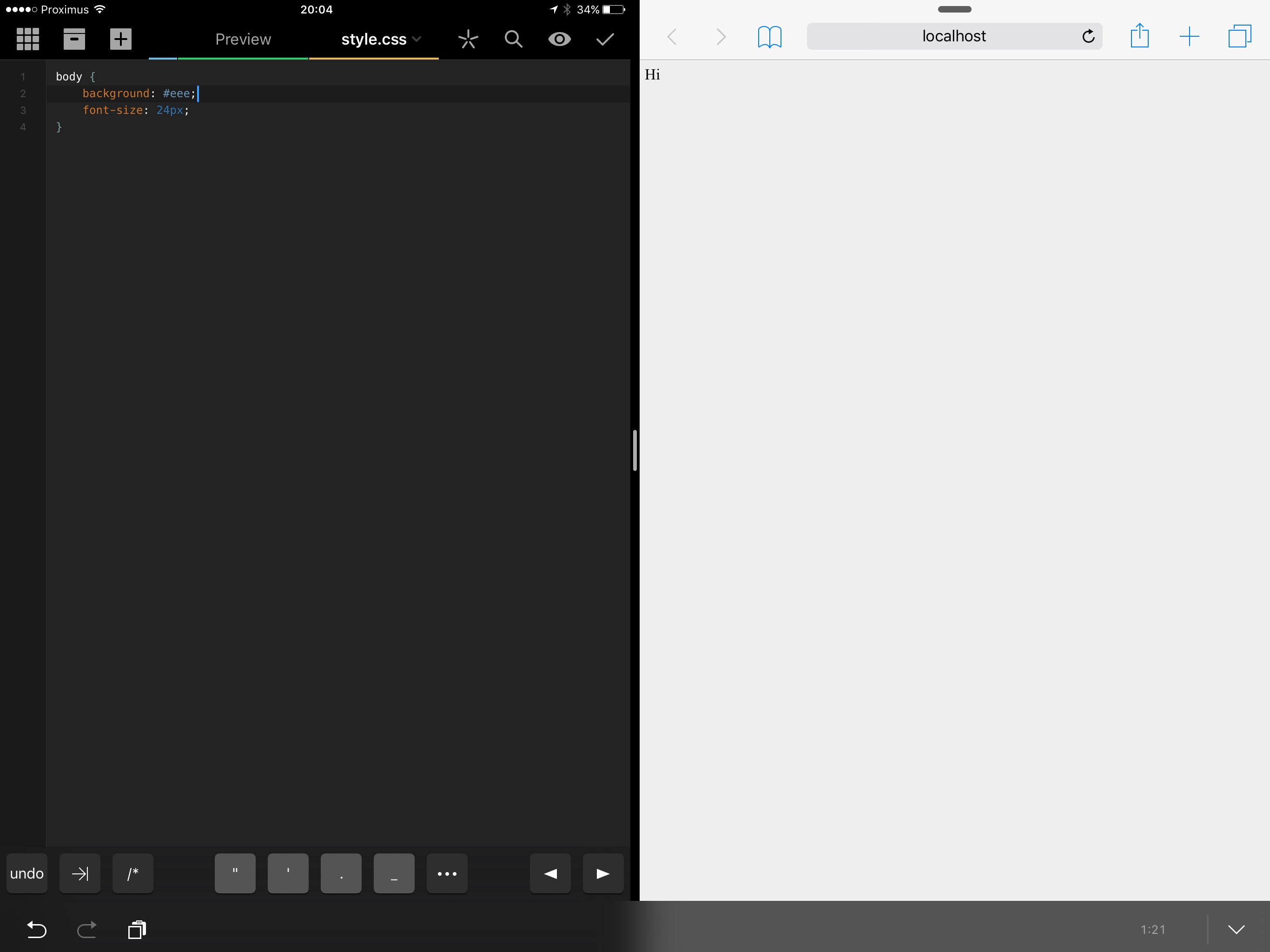
    So far what I’ve got is Coda where I can use the iPad in split screen mode to create a small website. It could be useful for some basic HTML/CSS work, but that’s about it.

    Ideally I’ll find an app where I can import a git repo, where I am able to run commands like npm install, commit to said git repo, and ultimately deploy the website via SSH.

    The way iOS works doesn’t make this an easy task; almost all of this depends on having a real filesystem.

  • Using the iPad Pro as a second screen (2)

    June 28, 2016 - Posted in Uncategorized

    I tried to use the iPad Air as an external screen using Duet in a client meeting… it was a disaster.

    First of all I couldn’t mirror my screen properly, so I was trying to control a second I couldn’t really see all that well.

    Then whenever I tried to go into full screen mode into Sketch, the application would show the wrong part of the screen and I would be disoriented.

    5 minutes in I excuse myself for the experiment, set the iPad aside and continued the meeting using my laptop. Whoops.

    I also wanted to try using the iPad as a second screen on location. I had this theory that I could maybe use the iPad as a dual monitor setup. It might be helpful when doing frontend work, where the iPad shows what you are creating but you have your full Macbook screen for your code.

    My iPad happened to only have 6% battery left. I tried to connect the iPad to the Macbook hoping that the charge on the Macbook would be enough to keep the iPad running – it wasn’t.

    The iPad draws power from a 12V adapter. In practice you can’t use it over USB on a Macbook all day because it would eventually just die. So your only option is to connect both the Macbook and iPad to power separately, and then use an app that shares the screen over WiFi – like Air Display 3. This method is a bit slow.

    I tried to use to get some work done but it just felt unnatural to have the iPad as a second screen. It’s a slightly different angle which is a bit bothersome. I ended up mostly ignoring the iPad while it sat idle alongside the Macbook. I noticed it again when I tried to use accessibility zoom in Mac OS with the iPad attached; for some reason my reason slowed down to a crawl. When I detached the iPad everything was fine again.

    I was dealing with issues with Google Drive at the same time. You know that moment when you start hating computers? At that point I was kind of done with the iPad Pro for today. There should be room for experimentation, but if it starts to affect my work performance, that doesn’t really make me happy.

    That’s it for the 2nd (!) blog post of today. I should count how many words I’ve already written about the iPad. Over and out!

  • iPad Pro – Ergonomics

    June 28, 2016 - Posted in Uncategorized

    I didn’t write yesterday so today there are 2 blog posts. This is the first one.

    I have to say I don’t expect anyone to really read all of this in detail – this writing is just there to ultimately compile the most interesting bits in an article in the research section. But I guess if you are interested in buying an iPad Pro it doesn’t hurt to know some things about it.

    Weight

    Carrying an iPad Pro around in a messenger bag gets tiring quickly. I lugged the iPad Pro around during a conference last week and after a while the weight really bothered me.

    What the iPad is brilliant at though is being able to show something quickly to someone else. The huge screen makes it easy to view – it’s much faster way than setting up a laptop somewhere – and thanks to the mobile data connection there’s a pretty good chance you’ll have some level of internet everywhere. Being able to show the right reference at the right time really makes the difference whether you make the sale or not.

    What about working on location? My workplace tends to be all over: my home, client’s offices, my colleague’s homes… this means I have.

    Carrying both a Macbook Pro and iPad Pro and their adapters in a backpack is doable, as long as you don’t carry too much extras and don’t have to walk too far.

    The case problem

    Putting away the iPad Pro’s case remains awkward after a week.

    I almost always want the keyboard case to be attached to the iPad, because there is rarely a situation where I don’t want to use the keyboard. When storing the iPad away it’s not as simple as with a regular iPad where you just fold over the cover. With the iPad Pro it’s a move in which you have to detach the magnetic part of the keyboard, then slide in the keyboard itself, then fold over the cover – without the keyboard dropping.

    It’s not like it’s that tricky to do, but it requires 2 hands and some concentration. When you’re busy working on a train and you suddenly see that you are already at the stop where you need to be, sometimes precious seconds count!

    Using the iPad as a drawing tablet for your computer

    There’s an app for the iPad called Astropad that allows you to use the iPad as a tablet. With the iPad Pro it doesn’t really work well, because it slides away when you draw on the screen using the Apple Pencil.

    I guess Astropad was conceived with regular iPads in mind because it doesn’t really work that well with the iPad Pro.

    When a case is attached to the iPad Pro things don’t slide as much, but an iPad can’t technically lie fully flat in these case creating a less than elegant situation.

    I have to experiment with it a bit more but for now I’m not so sure.

    Using the iPad in cramped locations

    I’ve tried the iPad Pro in various train settings (first class, second class, newer and older trains, all in Belgium) and the experience ranges from great to extremely bad.

    Whether the iPad is comfortable to use in a vehicle with a tray table (think planes and trains) really depends on how cramped your seat is, and how far the tray table is positioned. I guess it also depends on your own size. YMVV.

    Using the iPad Pro on your lap

    You can use the iPad Pro on your lap but it’s not super stable. A laptop provides far more stability because of it’s general shape and because it’s typically bottom-heavy whereas the iPad is top-heavy.

    It is doable to use an iPad on your lap for short emails etc. but it’s not great for longer amounts of time.

    Conclusion

    That’s it for this post on ergonomics. The iPad Pro is a wildly different beast than a laptop. Sometimes it’s better and sometimes it’s not – but it does feel like it’s a device that I could use to work for a full day – if my duties for the day could be fulfilled on iOS, that is.

  • Using the iPad Pro as a graphic design tool

    June 26, 2016 - Posted in computers interface

    At Mono we have this little side project where we are building an app to help people get proper HTML content out of their Keynote presentations.

    I wrote about the idea before in an earlier blog post. Said blog post describes a really clunky workflow to get a Keynote presentation to eventually become a website like this. We are building an app to make it easy enough for anyone to do.

    Anyway, the app needs an icon, and I needed an excuse to learn more about using the iPad Pro as a graphic design tool.

    After some trial and error with various apps I settled on using Graphic by Autodesk to try and create a first version of the icon. I based myself of off an existing sketch made on paper.

    In the process I had to learn a lot about Graphic as a tool itself. Overall I thought it was interesting because it felt much more natural to manipulate vector points with a pen. Whereas with a mouse you are always struggling a bit to put something in the right position, with a pen it just feels more natural.

    The end result is not really up to my standards to be a proper Mac app icon, and I’ll probably discard this. But I can sense some potential here… especially if there’s good handoff between a Mac app and an iPad app, the iPad app could be used for tweaking the details whereas the Mac app could be used to paint the broad strokes.

  • iPad Pro – Tidbits (3)

    June 25, 2016 - Posted in Uncategorized

    Graphic by Autodesk

    Yesterday I was talking to Sander Spolspoel, who is a freelance animator that specializes in small videos that explain concepts e.g. what a company does. You can find his website here.

    He’s had an iPad Pro since December. He uses it a lot for creative work. He showed me tons of drawings that he made using the iPad, mainly created using an app called Graphic. Here’s a screenshot of the app:

    Basically it works a lot like Adobe Illustrator. It looks very promising and I think I’ll use this the next time I am drawing a design on the iPad.

    Git clients and coding on the iPad

    Did you know there are Git clients for the iPad? I spotted an app called Working Copy on Federico Vittici’s home screen and I was curious – it turns out to be a Git client. It looks like this:

    I’ve got a whole separate blog post coming up about coding on the iPad, but it’s interesting to know that this exists.

    What I think about the iPad Pro after about a week

    One week in, I know I freaking love this device. I’ve had iPads for years, but they mostly went unused. The main use case for the iPad would be entertainment on long trips. In a work-like situation I would either go to my iPhone or my Macbook to do something, but now my go-to device has become the iPad Pro.

    A huge part of this is because I am obviously testing the device, but I think it’s going to stay this way. I have the feeling I’ll have to relearn a lot of my existing workflows but in the end they will be better. At the very least I’ll learn something new. 

  • iPad Pro – Tidbits (2)

    June 24, 2016 - Posted in Uncategorized

    Skype

    Today I tested Skype on the iPad Pro. The camera is pretty good – it’s not full HD but it’s not bad at all. I had no issues Skyping with my colleague. One thing worth mentioning is that the angle is quite weird – it’s not frontal, it’s a bit “from below”. Like this: 

    IFTTT and automation

    I didn’t like the process of tweeting these blogposts and was glad to find out there is an IFTTT app for the iPad called IF. From the iPad I created a recipe by logging into WordPress from the IF app. It used the Twitter credentials that were  already stored inside the system.

    I ‘m curious to read more about automation. In the past I’ve read some stuff from Federico Vittici at MacStories who seems to be the master of automation; he’s been doing this since 2012.

    The keyboard

    When I was writing yesterday’s post, it was already dark, and I noticed I really missed the keyboard lighting that you have on Macbooks. I’ve also been missing an indicator whether caps lock was on or not. There’s some small luxuries you have on a Macbook that you don’t have on the iPad Pro.

    So far I’ve really liked the keyboard though, and I think the iPad Pro is a fantastic writing device. If I was a full-time writer I think I would be able to use it as my sole computer.

    Over and out!

← older
newer →
  • ©2026 Johan Ronsse
  • X
  • Bluesky
  • Mastodon
  • Portfolio 2024